How to add an image backgound to the Quarto theme for vBulletin 5

If you want to add a custom background image to the Quarto theme for vBulletin 5 just follow these simple steps.

  1. Prepare your image and place it somewhere in your forum folders. E.g. upload it to
    /images/quarto/YOUR_COLOR/bg-images/
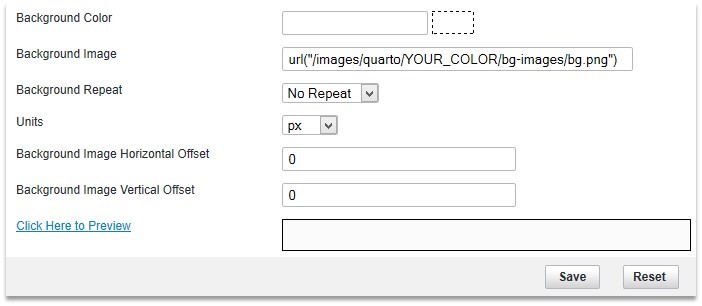
  2. Now go to AdminCP – Styles & Templates – Style Manager – YOUR_THEME – Style Variable Editor (dropdown menu to the right) – PixelgooseQuartoVariables - quarto_background_image and fill the fields like this:

    Background image style variable
  3. You can play with background variables like Repeat (for seamless textures) or Horizontal Offset (to center your image horizontally)
  4. Save the variable and test your theme.
  5. (OPTIONAL) And if you want the image to stay fixed go to css_additional.css template of your theme and find the following css-rules –
    body {
    	background: {vb:stylevar quarto_background_image};
    	background-color: {vb:stylevar body_background.color};
    	/*background-size: 100% auto;*/
    	/*background-attachment: fixed;*/
    }
    

    Now just uncomment background-attachment rule –
    body {
    	background: {vb:stylevar quarto_background_image};
    	background-color: {vb:stylevar body_background.color};
    	/*background-size: 100% auto;*/
    	background-attachment: fixed;
    }
    

    You can also uncomment the background-size rule. In this case your image (if you using a wide photo) will always be 100% wide. But don’t use the background-size rule with tiling images.
  6. Save the template and refresh your forum page.